Catégorie : Wireless Printing

  • Printer Offline After a Router Change? Diagnose the Connection

    This guide is for home network printers, with Windows 11 steps where specified. A printer connected directly by USB needs a different connection check. For a managed work network, ask your IT team before changing network or printer settings.

    Choose your starting point

    Keep a note of the exact printer model, what changed and the error you see. Work through one branch at a time; retry one small job after a change. A successful check helps you move on, rather than repeat every reset you can find.
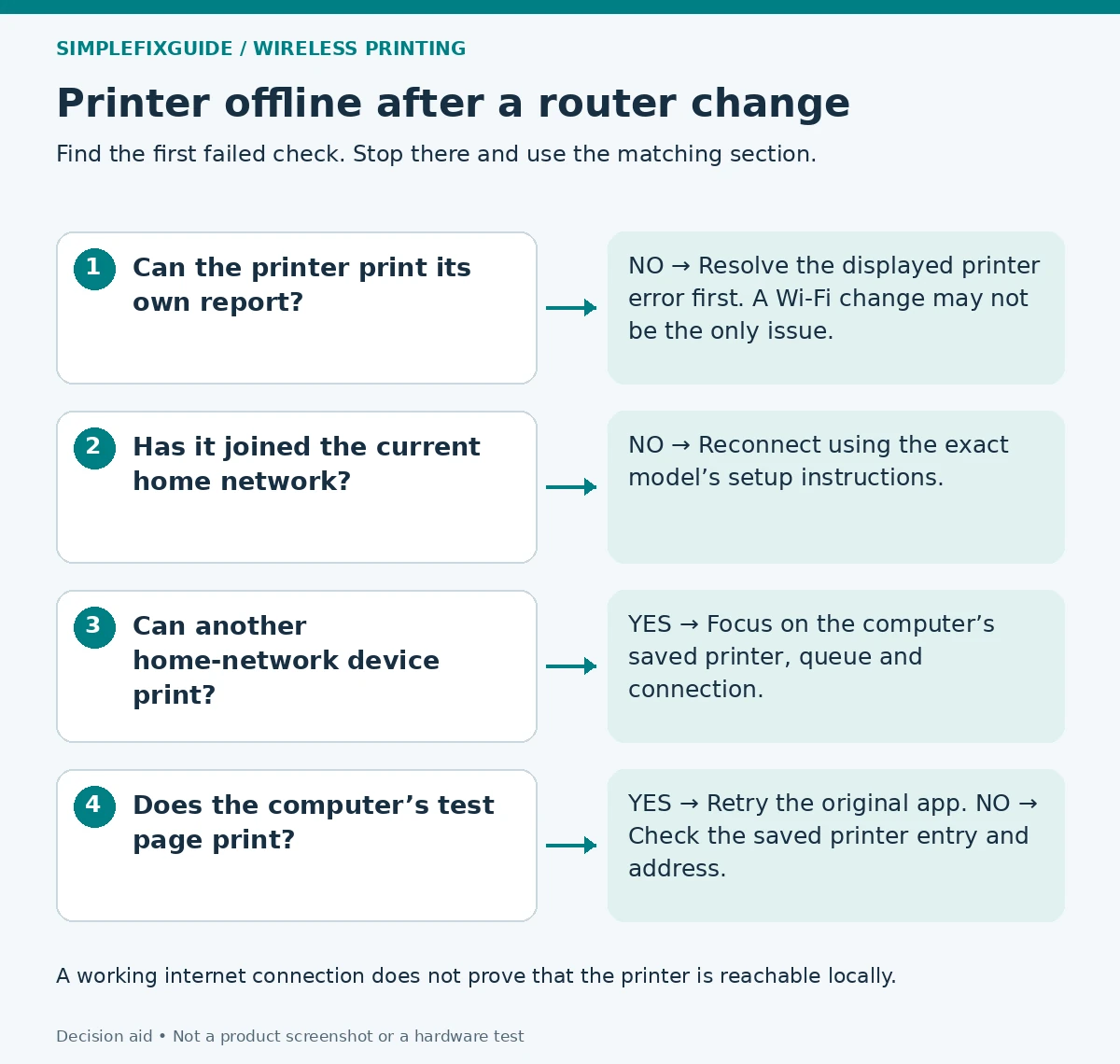
    View the diagram at full size

    Four diagnostic checks: printer report, current network, another device and computer test page.
    Start with the earliest failed check. The table below gives the same decisions in text. Open full-size diagram.
    What you observeWhat it tells youGo next
    The printer cannot produce its own reportThere may be a device, paper or supply error independent of Wi-Fi.Resolve the displayed printer error.
    Its report lists the old Wi-Fi name or no connectionThe printer has not joined the intended network.Reconnect before changing Windows.
    Another device prints over the same home networkAt least one local printing route works; the computer needs closer inspection.Check its selected printer and queue.
    The Windows test page prints, but your document does notThat queue can deliver a page; the app or file remains a possible cause.Try a simple document in another app.

    1. Check the printer itself

    Wake the printer and read its display or warning lights. Confirm paper is loaded and resolve any explicit jam or supply message using the model’s manual. Print an internal status or network report if the model supports it. This page comes from the printer itself, so it separates basic printer operation from a computer-to-printer connection problem.

    Expected result: The internal page prints. This confirms only that the printer can produce that page; it does not confirm Wi-Fi, AirPrint, the Windows driver or every paper tray.

    2. Reconnect to the current home network

    Compare the network name on the printer’s report with the network you intended to use after the router change. Also check whether the report says connected and whether it shows an assigned IP address. Keep the report private: it can contain identifying network information.

    If the printer is disconnected or names the old network, use its wireless setup wizard or the exact model’s official setup application. A printer without a display may require a particular button sequence to enter setup mode; there is no safe universal sequence. The Canon guide linked below also explains why a router’s changed name, password or security configuration can require printer setup to be repeated.

    Choose a Wi-Fi band and security mode supported by the printer. A new router being faster does not make an older printer compatible with every band or authentication mode. Check the model’s specification and manufacturer guidance before changing router settings; keep encryption enabled.

    For your first local test, connect the computer to the main home network rather than a guest network. Check whether an old router or extender is still broadcasting a familiar network name. If it is, record which access point the devices use before changing anything.

    3. Check the Windows connection after the printer reconnects

    In Windows 11, open Settings → Bluetooth & devices → Printers & scanners. Select the intended physical printer and inspect its queue. Do not accidentally select Microsoft Print to PDF, a fax destination or an old duplicate. Note any error before cancelling only jobs you no longer need. Microsoft’s Get Help printer troubleshooter is another supported next step.

    If the queue still uses an old address

    For an existing Standard TCP/IP queue, compare the saved destination with the printer’s current network report. Open the printer’s Printer properties → Ports; the exact access path can vary. An old address is a plausible explanation when a router change gives the printer a new address. This check does not apply in the same way to USB, WSD or every vendor-specific queue.

    Use the manufacturer’s current instructions to correct the connection or add a new entry. Brother’s linked guide shows the principle for its supported models: establish network communication first, then use the address from the printer’s report. Do not copy an example IP address or assign an arbitrary static address from an online guide.

    Alternatively, use Printers & scanners → Add device and the manual-add option if discovery does not find it. Retain the old entry until the new one prints. Download software only from the manufacturer’s support page for your model and operating system.

    4. Confirm the fix and keep a useful record

    Print one small page from the computer, then retry the document that originally failed. If you can print only from a phone, use our phone-versus-computer diagnostic. For an iPhone that cannot discover the printer, use the AirPrint guide.

    Illustrative case, not a test result: A printer’s report shows the new home network, and another laptop prints successfully. The affected PC still has an entry pointing to the old address. That combination makes the saved computer connection worth checking before repeating Wi-Fi setup; it does not prove the driver is faulty.

    If the problem returns, note whether it follows a restart, a router change or printer sleep. If changing addresses are confirmed, ask the router manufacturer how its DHCP reservation feature works. Do not assume an address outside the DHCP range is available.

    Escalate with the printer model, Windows version, exact error, current connection status and results of the internal page and computer test. Avoid factory resets or broad firewall changes as trial-and-error fixes.

    Common questions

    Do I need to buy a new printer after changing the router?

    A failed connection alone is not evidence that replacement is needed. Confirm network compatibility and test the printer’s own page before considering hardware.

    Should I reuse the old Wi-Fi name and password?

    It may simplify reconnection for some devices, but matching credentials does not reproduce every router setting or network path. Check the printer’s actual connection afterward.

    Why is the printer connected to Wi-Fi but Windows says offline?

    Wi-Fi association and a usable Windows printing route are different checks. An outdated saved destination, wrong queue or blocked local path can still prevent a job from reaching the printer.

    Sources and method

    Editorial method: Documentation reviewed on 7 October 2026. Written with AI assistance and checked against the official sources listed below. The diagrams and troubleshooting comparisons are our editorial decision aids. We have not tested these steps on physical printers; button sequences, apps and menu labels can vary by model and software version. No manufacturer endorsement is implied.
  • No AirPrint Printers Found? Diagnose iPhone Printing

    For iPhone or iPad using a home network. This guide distinguishes Apple’s system AirPrint dialog from a manufacturer app’s own discovery. The same printer can behave differently in those two routes.

    Identify the symptom before changing settings

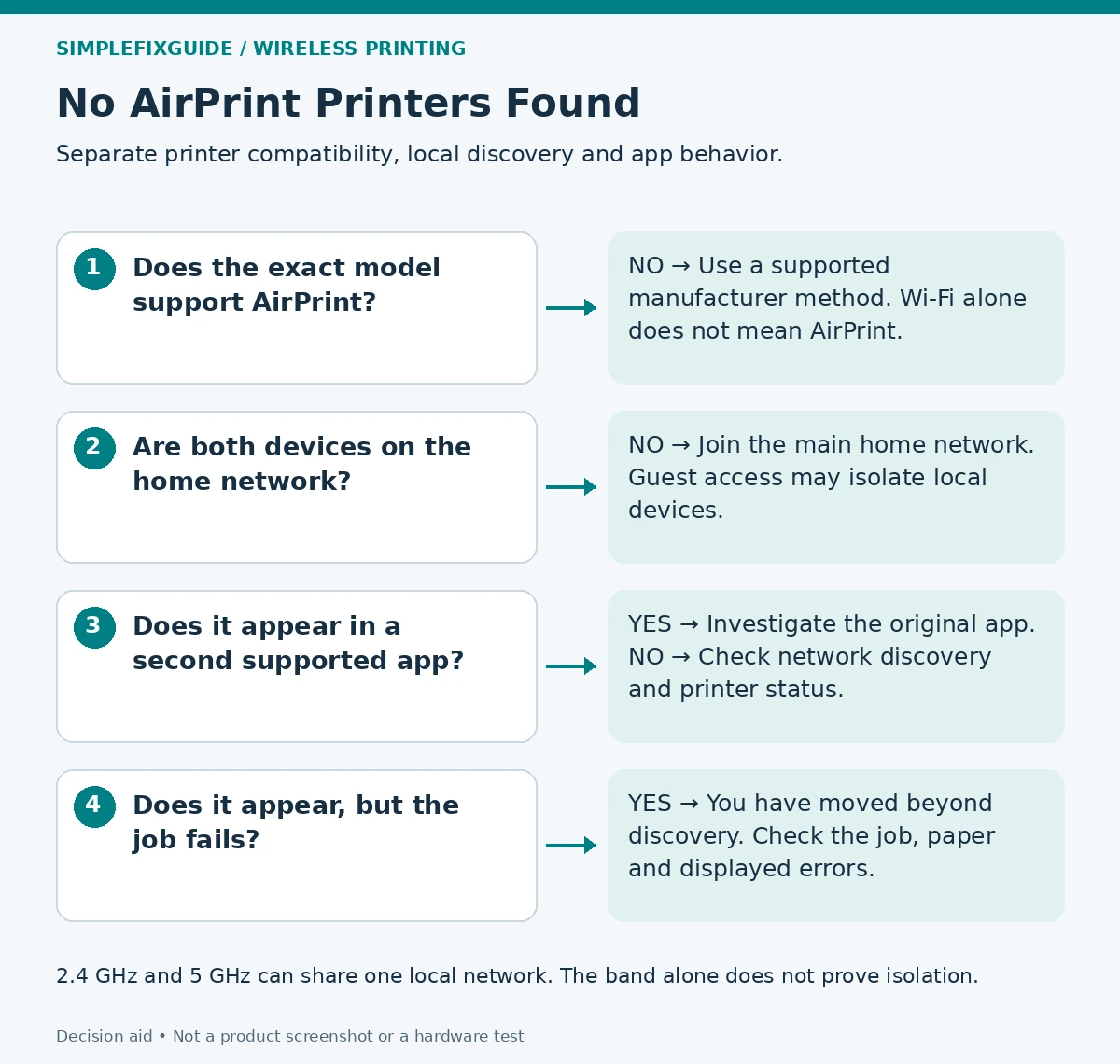
    View the diagram at full size

    AirPrint diagnostic: check compatibility, the home network, a second app and whether the job fails after discovery.
    Use these checks in order. The steps below explain the limits of each result. Open full-size diagram.
    SymptomStart hereWhat to avoid
    There is no Print option in the appCheck whether that app supports printing and where its menu is.Assuming a missing menu means the Wi-Fi is broken.
    Print opens but the printer is absentCheck compatibility and local discovery.Treating a Wi-Fi badge as proof of AirPrint support.
    The printer appears but the job does not finishInspect its error display and the job.Repeating only “printer not found” fixes.
    One app finds it and another does notCompare system printing with the app’s own discovery.Granting every app local-network permission.

    1. Check AirPrint support for the exact model

    Find the full model number on the printer and check the manufacturer specification or Apple’s AirPrint information. Wireless connectivity by itself does not establish AirPrint support. Apple describes AirPrint as a network printing method; a USB-only connection to a computer is not the same thing as putting the printer on the local network.

    If the printer lacks AirPrint, follow an explicitly supported manufacturer method. A vendor app printing successfully does not establish that the same model supports the iPhone’s system AirPrint dialog. Do not install a driver or “AirPrint repair” utility on the basis of a search advertisement.

    2. Check the local network, not just internet access

    Wake the printer and inspect its network status screen or network report. On the iPhone or iPad, open Settings → Wi-Fi and check the connected network. If the printer is still on an old network after a router replacement, start with our router-change guide.

    Apple’s consumer instructions call for the device and printer to use the same Wi-Fi network. An AirPrint-capable printer can also connect by Ethernet to the home network; the iPhone still connects by Wi-Fi. For the initial check, use your main home network rather than guest Wi-Fi. Do not open access between a guest network and your private devices just to experiment.

    Must both devices use 2.4 GHz?

    No universal same-band rule applies. Google’s Nest documentation explains that different bands can share one network name. A 2.4 GHz printer and 5 GHz phone can communicate when the router puts them on the same local network and allows the required traffic. A printer must still support the band it joins, and some manufacturer setup processes have additional requirements.

    If the name matches but discovery fails, keep the network configuration in view. Guest isolation, separate subnets or some mesh/extender configurations can change the local route. Matching the visible Wi-Fi name is useful evidence, not a complete network test.

    3. Try system printing from a second supported app

    Open a small item in a supported app, such as a photo in Photos. Use its Share or actions menu, choose Print and open the printer selector. Apple notes that not all apps support printing. If the printer is listed, select it and send one page you are happy to print.

    Interpret the result: Listed but failing is different from not listed. A completed page confirms this particular route works. If the second app works while the original one fails, inspect that app’s printer selection, document and print support before changing the router.

    Local Network permission: when it matters

    For a trusted manufacturer app using its own device discovery, review Settings → Privacy & Security → Local Network. If it is listed, its permission may affect that app’s discovery. Apple explicitly says an app denied direct local-network access can still use system services such as AirPrint. This setting is therefore not a universal cure for the system’s printer list. If the app is absent, do not assume that a hidden toggle must be enabled.

    4. When the printer stays invisible in supported apps

    Restart the printer normally and retry once; restart the iPhone or iPad if needed. Record whether waking the printer changes discovery. Do not assume that a successful wake test proves the cause of later failures.

    Check the exact model’s manual for AirPrint or Bonjour settings and supported firmware. If updates are advised, use the manufacturer’s instructions and a stable connection. Avoid resetting all iPhone network settings as an early experiment: that changes unrelated saved network configuration.

    AirPrint discovery uses Bonjour. Apple’s deployment documentation explains that multicast traffic usually stays within a subnet, so an ordinary home setup needs the devices on the same local subnet unless the network deliberately supports discovery across it. If Wi-Fi names match but every compatible app still fails, ask the router vendor about local-device isolation and Bonjour/multicast support for your exact setup. A work or managed network needs its administrator.

    Illustrative case, not a test result: An iPhone browses the web on guest Wi-Fi while a printer sits on the main network. The internet works, but the printer is not listed. Moving the phone to the authorized main network is a useful comparison; turning off guest isolation for everyone is a much broader change.

    For support, record model, iOS/iPadOS version, app, whether AirPrint ever worked, the printer’s connected network and whether it appears in a second supported app. Keep passwords and unredacted network reports out of public posts.

    Common questions

    Can an Ethernet printer work with an iPhone?

    Yes, if the printer supports AirPrint and is reachable on the local network. Wi-Fi is the phone’s connection; it need not be the printer’s connection.

    Does AirPrint require a manufacturer app?

    The system AirPrint method does not require a manufacturer app for an already configured compatible printer. Initial network setup can still require a model-specific process.

    Why can the computer print but the iPhone cannot find it?

    The computer may use USB, a saved address or another printing method. A successful computer job does not prove that AirPrint discovery is available to the phone.

    Should I change Wi-Fi bands first?

    Check compatibility and the actual network first. A band change is useful only when the printer or setup instructions require it, or a specific network comparison justifies it.

    If the phone prints but your computer fails instead, use the computer diagnostic guide.

    Sources and method

    Editorial method: Documentation reviewed on 7 October 2026. Written with AI assistance and checked against the official sources listed below. The diagrams and troubleshooting comparisons are our editorial decision aids. We have not tested these steps on physical printers; button sequences, apps and menu labels can vary by model and software version. No manufacturer endorsement is implied.

  • Printer Works on Your Phone but Not Your Computer?

    For home printers used from Windows 11 or a Mac. Phone printing is a useful observation, but it does not identify a single cause or prove the computer has the same connection.

    1. Compare the printing routes

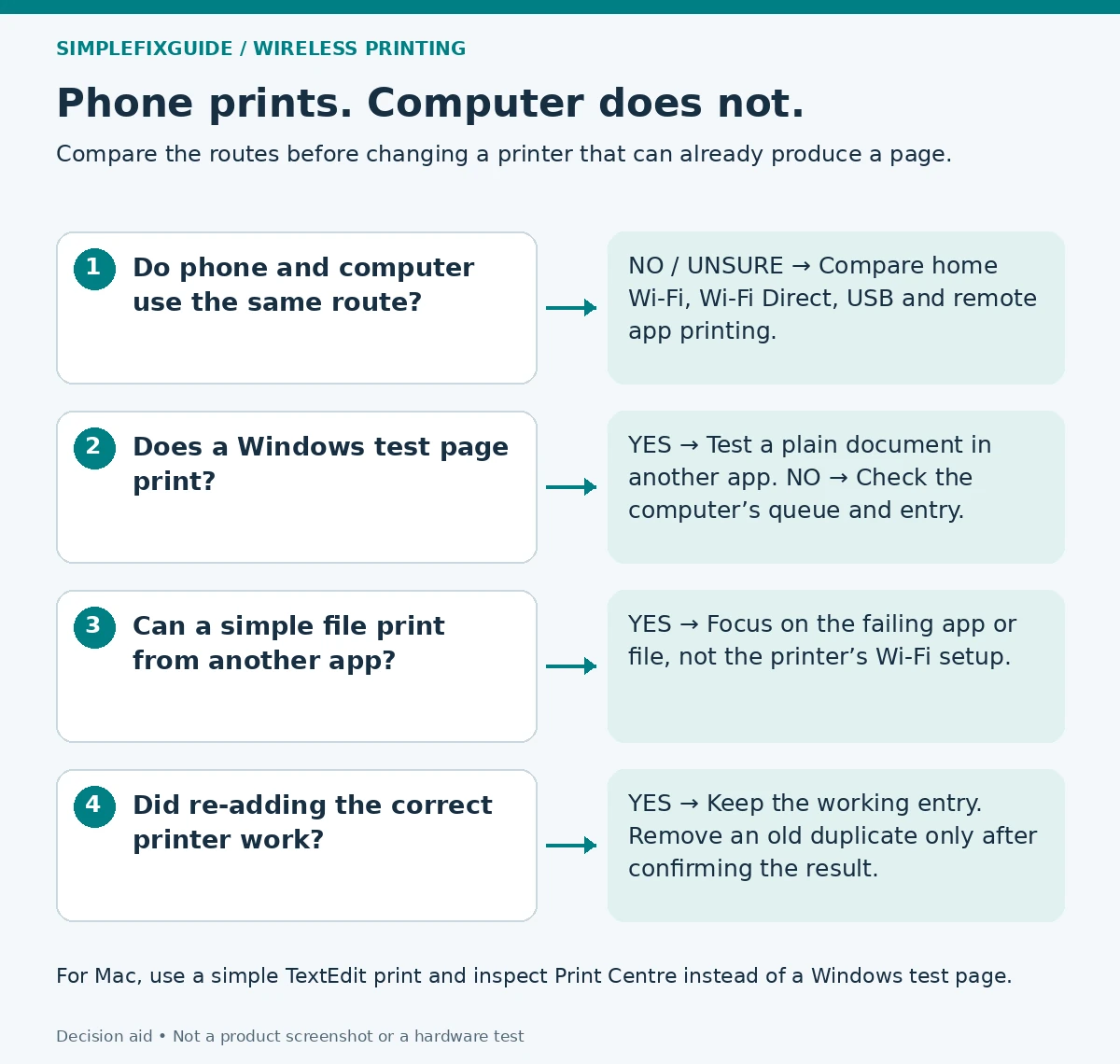
    View the diagram at full size

    Compare connection routes, Windows test-page result, a simple file and a corrected printer entry.
    Choose the branch your test supports. Mac users can use the separate TextEdit check below. Open full-size diagram.

    Write down the printer name selected on each device and whether a page actually came out. “Sent” or “completed” in an app is not the same observation as receiving the printed page.

    CheckPhoneComputer
    ConnectionMain home Wi-Fi, printer’s direct Wi-Fi, or another supported method?Home Wi-Fi, Ethernet, USB, or a shared/remote printer?
    DestinationAirPrint or the manufacturer app? Exact selected printer?Exact selected printer entry, including duplicates?
    Observed resultPhysical page printed? Which app and file?Missing printer, offline message, stuck queue, or app-only failure?
    Recent changeApp, phone or network change?Router, operating system, driver or printer-entry change?

    A direct printer Wi-Fi network can bypass the home router. Check its identity against the model’s manual rather than guessing from a network name. If the phone is using a direct or remote method, successful phone printing does not confirm that the home-network route works for the computer.

    For a local comparison, connect your own computer to the intended main home network. Check the printer’s network report if necessary. If it stopped after a router change, use the router-change diagnostic. For the reverse problem—computer works but iPhone cannot discover it—use the AirPrint guide.

    2. Test the Windows 11 route

    Print a Windows test page

    Open Settings → Bluetooth & devices → Printers & scanners, select the intended printer and open Printer properties. On General, choose Print Test Page. Microsoft documents this check to separate Windows communication from printing in an individual app. Labels can differ with the driver and Windows version.

    If the page prints, try a short, non-sensitive plain-text file in Notepad. Then return to the failing app. Check its selected printer, page range and paper settings; make sure a PDF or file destination was not selected instead. One successful simple page does not establish that every document format or advanced driver option works.

    If the test page does not print

    Inspect the queue for the selected entry and note the error. Cancel only unwanted jobs; you will need to resend them. Use Microsoft’s printer troubleshooter in Get Help. Confirm that the entry represents the current physical printer, not an old network connection or a duplicate with a similar name.

    If the printer is confirmed on the current network but the computer cannot discover it, use Printers & scanners → Add device and the supported manual option. Keep the existing entry until a new one produces a page. Where your exact model needs manufacturer software, obtain the package from its official support site for your Windows version.

    If a saved Standard TCP/IP address is suspected after a router change, use the focused address check in the linked router-change guide. That procedure is not interchangeable with checking a USB or WSD queue. A failed test page alone does not prove that the driver is bad.

    3. Test the Mac route separately

    Open Print Centre and inspect the queue you used. Resume it if it is paused; cancel a job only if you no longer need it. Then try a short plain-text document from TextEdit, explicitly selecting the intended printer. Note whether the physical page prints.

    If TextEdit works, compare the failing app, file and print settings. If it fails too, confirm the Mac and printer’s local connection before adding the printer again in System Settings → Printers & Scanners. Apple recommends trying a new queue before removing the old one once it works.

    4. Interpret the results without overreaching

    Your observationReasonable next focusWhat is not established
    Phone prints only through direct printer Wi-FiThe computer’s route through the home network.That the printer has joined the home router.
    Windows test page or Mac TextEdit page printsThe original app, document and selected settings.That every file and advanced feature will print.
    All computer apps fail; same-network phone succeedsComputer queue, saved destination and supported software.That reinstalling the driver is definitely necessary.
    A new printer entry prints successfullyKeep the working entry; remove the obsolete duplicate after noting settings.That unrelated router settings need to change.

    Illustrative case, not a test result: A phone prints a photo through the manufacturer app. The PC’s Windows test page also prints, but a particular PDF does not. That supports checking the PDF/app path first. It does not support resetting the printer’s Wi-Fi simply because the original document failed.

    5. Escalate with useful evidence

    Record these results privately before contacting support. They are more useful than “the printer doesn’t work.”

    • Exact printer model and firmware if available; Windows or macOS version.
    • Phone app and connection method that produced a physical page.
    • Computer’s selected printer entry and its connection type if shown.
    • Test-page or TextEdit result, exact error and the affected app/file.
    • Changes made and the outcome after each; whether a new entry worked.

    For a managed computer, a work VPN or protected network, ask its administrator about authorized local printing. Do not disable security software or change access policies as a blanket fix. A confidential document is a poor troubleshooting sample; use a short neutral file instead.

    Common questions

    Does phone printing prove the printer is connected to my router?

    No. It depends on the phone’s actual printing method. A direct printer connection or vendor service can follow a different route.

    Should I reinstall the driver immediately?

    First test the selected queue and a simple file. Reinstallation becomes a targeted step when official guidance and the connection checks support it.

    Why can the test page print but Word or a PDF cannot?

    The queue can deliver at least that test page. The original app may use a different destination, settings or document path; compare a simple file before changing network setup.

    Should I buy another printer?

    These observations alone do not establish a hardware defect. Separate the printer’s own operation, local connection and computer/app route before making a purchase.

    Sources and method

    Editorial method: Documentation reviewed on 7 October 2026. Written with AI assistance and checked against the official sources listed below. The diagrams and troubleshooting comparisons are our editorial decision aids. We have not tested these steps on physical printers; button sequences, apps and menu labels can vary by model and software version. No manufacturer endorsement is implied.