This guide is for home network printers, with Windows 11 steps where specified. A printer connected directly by USB needs a different connection check. For a managed work network, ask your IT team before changing network or printer settings.
Choose your starting point
Keep a note of the exact printer model, what changed and the error you see. Work through one branch at a time; retry one small job after a change. A successful check helps you move on, rather than repeat every reset you can find.
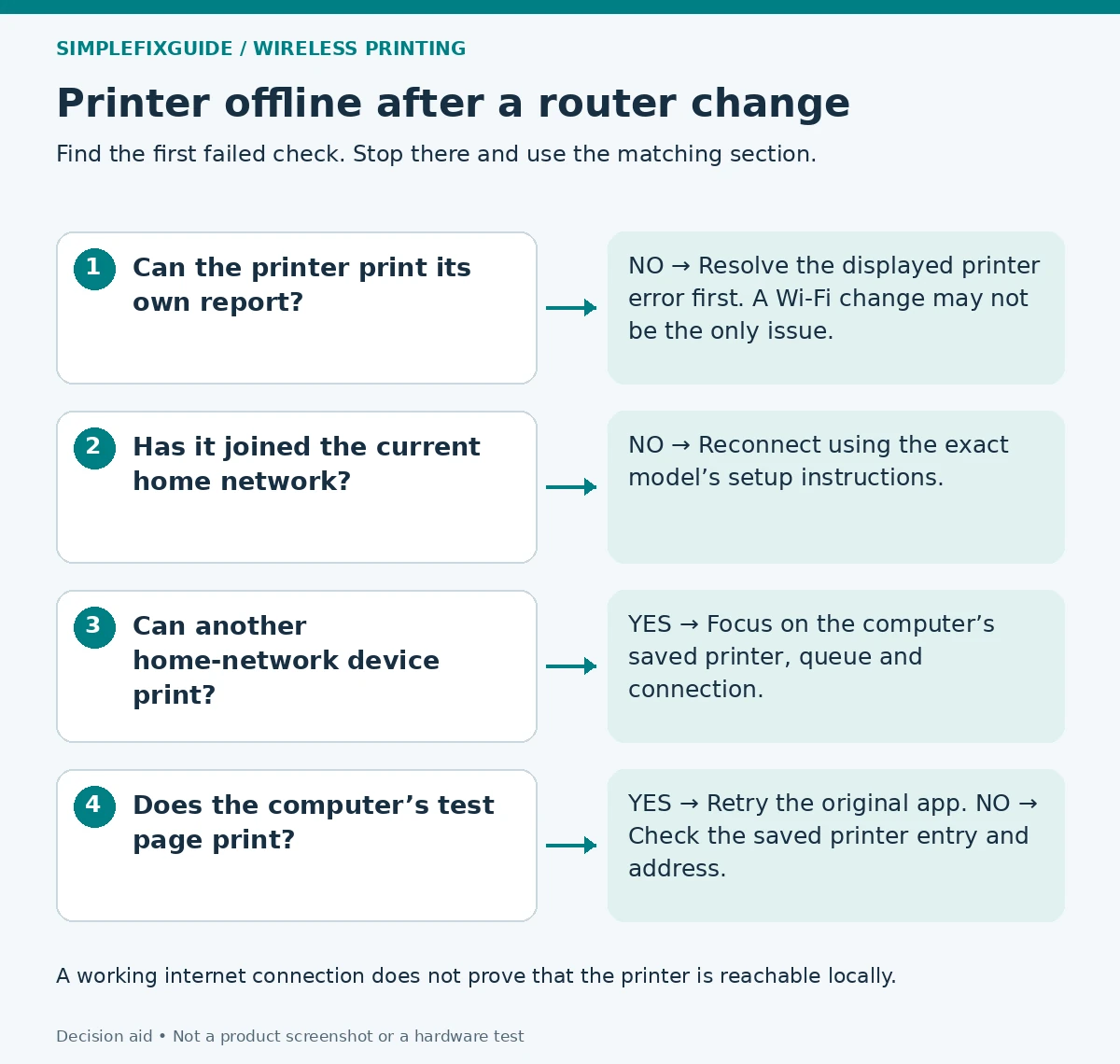
| What you observe | What it tells you | Go next |
|---|---|---|
| The printer cannot produce its own report | There may be a device, paper or supply error independent of Wi-Fi. | Resolve the displayed printer error. |
| Its report lists the old Wi-Fi name or no connection | The printer has not joined the intended network. | Reconnect before changing Windows. |
| Another device prints over the same home network | At least one local printing route works; the computer needs closer inspection. | Check its selected printer and queue. |
| The Windows test page prints, but your document does not | That queue can deliver a page; the app or file remains a possible cause. | Try a simple document in another app. |
1. Check the printer itself
Wake the printer and read its display or warning lights. Confirm paper is loaded and resolve any explicit jam or supply message using the model’s manual. Print an internal status or network report if the model supports it. This page comes from the printer itself, so it separates basic printer operation from a computer-to-printer connection problem.
Expected result: The internal page prints. This confirms only that the printer can produce that page; it does not confirm Wi-Fi, AirPrint, the Windows driver or every paper tray.
2. Reconnect to the current home network
Compare the network name on the printer’s report with the network you intended to use after the router change. Also check whether the report says connected and whether it shows an assigned IP address. Keep the report private: it can contain identifying network information.
If the printer is disconnected or names the old network, use its wireless setup wizard or the exact model’s official setup application. A printer without a display may require a particular button sequence to enter setup mode; there is no safe universal sequence. The Canon guide linked below also explains why a router’s changed name, password or security configuration can require printer setup to be repeated.
Choose a Wi-Fi band and security mode supported by the printer. A new router being faster does not make an older printer compatible with every band or authentication mode. Check the model’s specification and manufacturer guidance before changing router settings; keep encryption enabled.
For your first local test, connect the computer to the main home network rather than a guest network. Check whether an old router or extender is still broadcasting a familiar network name. If it is, record which access point the devices use before changing anything.
3. Check the Windows connection after the printer reconnects
In Windows 11, open Settings → Bluetooth & devices → Printers & scanners. Select the intended physical printer and inspect its queue. Do not accidentally select Microsoft Print to PDF, a fax destination or an old duplicate. Note any error before cancelling only jobs you no longer need. Microsoft’s Get Help printer troubleshooter is another supported next step.
If the queue still uses an old address
For an existing Standard TCP/IP queue, compare the saved destination with the printer’s current network report. Open the printer’s Printer properties → Ports; the exact access path can vary. An old address is a plausible explanation when a router change gives the printer a new address. This check does not apply in the same way to USB, WSD or every vendor-specific queue.
Use the manufacturer’s current instructions to correct the connection or add a new entry. Brother’s linked guide shows the principle for its supported models: establish network communication first, then use the address from the printer’s report. Do not copy an example IP address or assign an arbitrary static address from an online guide.
Alternatively, use Printers & scanners → Add device and the manual-add option if discovery does not find it. Retain the old entry until the new one prints. Download software only from the manufacturer’s support page for your model and operating system.
4. Confirm the fix and keep a useful record
Print one small page from the computer, then retry the document that originally failed. If you can print only from a phone, use our phone-versus-computer diagnostic. For an iPhone that cannot discover the printer, use the AirPrint guide.
Illustrative case, not a test result: A printer’s report shows the new home network, and another laptop prints successfully. The affected PC still has an entry pointing to the old address. That combination makes the saved computer connection worth checking before repeating Wi-Fi setup; it does not prove the driver is faulty.
If the problem returns, note whether it follows a restart, a router change or printer sleep. If changing addresses are confirmed, ask the router manufacturer how its DHCP reservation feature works. Do not assume an address outside the DHCP range is available.
Escalate with the printer model, Windows version, exact error, current connection status and results of the internal page and computer test. Avoid factory resets or broad firewall changes as trial-and-error fixes.
Common questions
Do I need to buy a new printer after changing the router?
A failed connection alone is not evidence that replacement is needed. Confirm network compatibility and test the printer’s own page before considering hardware.
Should I reuse the old Wi-Fi name and password?
It may simplify reconnection for some devices, but matching credentials does not reproduce every router setting or network path. Check the printer’s actual connection afterward.
Why is the printer connected to Wi-Fi but Windows says offline?
Wi-Fi association and a usable Windows printing route are different checks. An outdated saved destination, wrong queue or blocked local path can still prevent a job from reaching the printer.
Sources and method
- Canon router-change troubleshooting — Wi-Fi settings and model-specific reconnection.
- Microsoft offline printer help — Windows queue and supported troubleshooting.
- Microsoft add or install a printer — Discovery and manual installation.
- Brother TCP/IP port guidance — Model-limited example of matching the saved address to the printer report.
Editorial method: Documentation reviewed on 7 October 2026. Written with AI assistance and checked against the official sources listed below. The diagrams and troubleshooting comparisons are our editorial decision aids. We have not tested these steps on physical printers; button sequences, apps and menu labels can vary by model and software version. No manufacturer endorsement is implied.
Laisser un commentaire