For iPhone or iPad using a home network. This guide distinguishes Apple’s system AirPrint dialog from a manufacturer app’s own discovery. The same printer can behave differently in those two routes.
Identify the symptom before changing settings
| Symptom | Start here | What to avoid |
|---|---|---|
| There is no Print option in the app | Check whether that app supports printing and where its menu is. | Assuming a missing menu means the Wi-Fi is broken. |
| Print opens but the printer is absent | Check compatibility and local discovery. | Treating a Wi-Fi badge as proof of AirPrint support. |
| The printer appears but the job does not finish | Inspect its error display and the job. | Repeating only “printer not found” fixes. |
| One app finds it and another does not | Compare system printing with the app’s own discovery. | Granting every app local-network permission. |
1. Check AirPrint support for the exact model
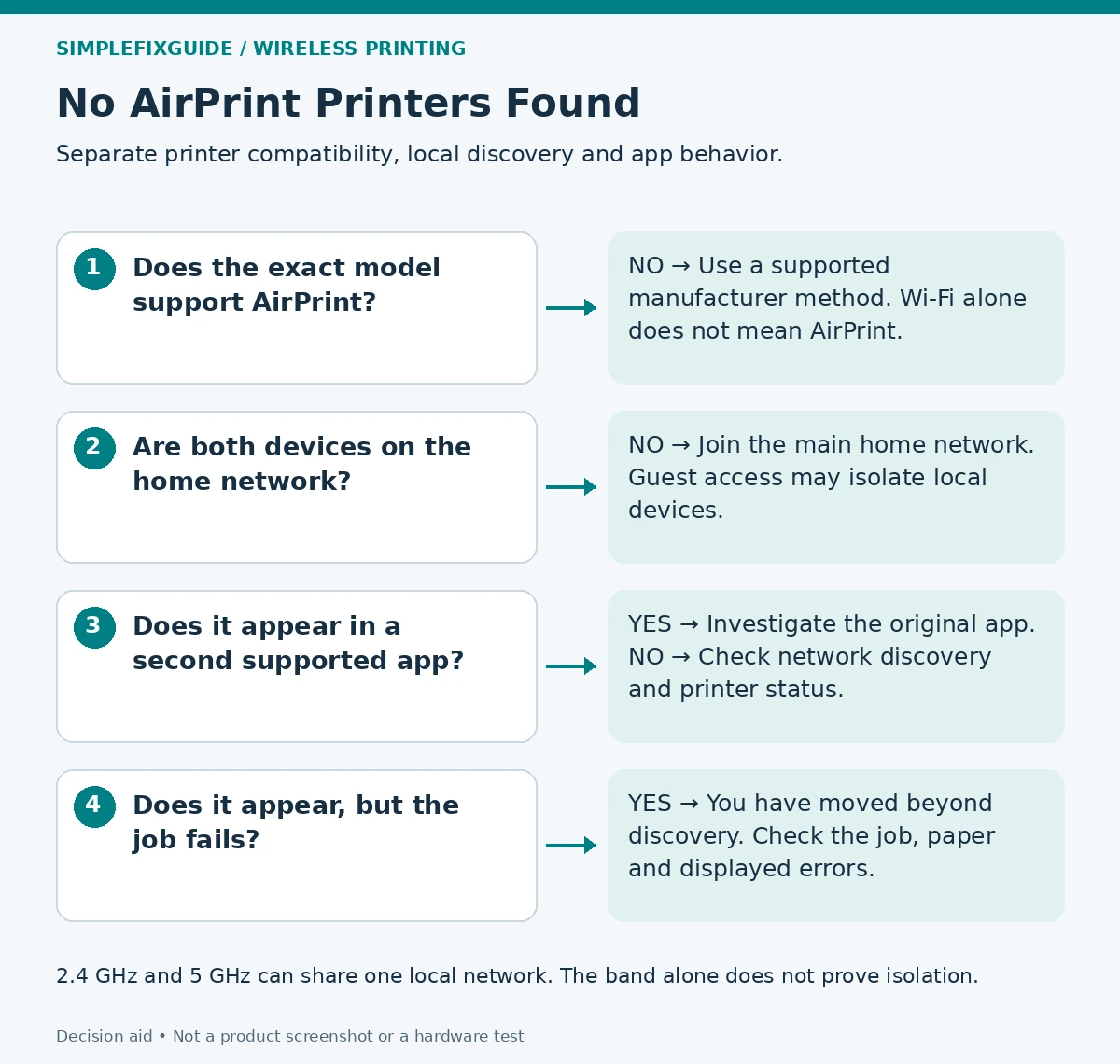
Find the full model number on the printer and check the manufacturer specification or Apple’s AirPrint information. Wireless connectivity by itself does not establish AirPrint support. Apple describes AirPrint as a network printing method; a USB-only connection to a computer is not the same thing as putting the printer on the local network.
If the printer lacks AirPrint, follow an explicitly supported manufacturer method. A vendor app printing successfully does not establish that the same model supports the iPhone’s system AirPrint dialog. Do not install a driver or “AirPrint repair” utility on the basis of a search advertisement.
2. Check the local network, not just internet access
Wake the printer and inspect its network status screen or network report. On the iPhone or iPad, open Settings → Wi-Fi and check the connected network. If the printer is still on an old network after a router replacement, start with our router-change guide.
Apple’s consumer instructions call for the device and printer to use the same Wi-Fi network. An AirPrint-capable printer can also connect by Ethernet to the home network; the iPhone still connects by Wi-Fi. For the initial check, use your main home network rather than guest Wi-Fi. Do not open access between a guest network and your private devices just to experiment.
Must both devices use 2.4 GHz?
No universal same-band rule applies. Google’s Nest documentation explains that different bands can share one network name. A 2.4 GHz printer and 5 GHz phone can communicate when the router puts them on the same local network and allows the required traffic. A printer must still support the band it joins, and some manufacturer setup processes have additional requirements.
If the name matches but discovery fails, keep the network configuration in view. Guest isolation, separate subnets or some mesh/extender configurations can change the local route. Matching the visible Wi-Fi name is useful evidence, not a complete network test.
3. Try system printing from a second supported app
Open a small item in a supported app, such as a photo in Photos. Use its Share or actions menu, choose Print and open the printer selector. Apple notes that not all apps support printing. If the printer is listed, select it and send one page you are happy to print.
Interpret the result: Listed but failing is different from not listed. A completed page confirms this particular route works. If the second app works while the original one fails, inspect that app’s printer selection, document and print support before changing the router.
Local Network permission: when it matters
For a trusted manufacturer app using its own device discovery, review Settings → Privacy & Security → Local Network. If it is listed, its permission may affect that app’s discovery. Apple explicitly says an app denied direct local-network access can still use system services such as AirPrint. This setting is therefore not a universal cure for the system’s printer list. If the app is absent, do not assume that a hidden toggle must be enabled.
4. When the printer stays invisible in supported apps
Restart the printer normally and retry once; restart the iPhone or iPad if needed. Record whether waking the printer changes discovery. Do not assume that a successful wake test proves the cause of later failures.
Check the exact model’s manual for AirPrint or Bonjour settings and supported firmware. If updates are advised, use the manufacturer’s instructions and a stable connection. Avoid resetting all iPhone network settings as an early experiment: that changes unrelated saved network configuration.
AirPrint discovery uses Bonjour. Apple’s deployment documentation explains that multicast traffic usually stays within a subnet, so an ordinary home setup needs the devices on the same local subnet unless the network deliberately supports discovery across it. If Wi-Fi names match but every compatible app still fails, ask the router vendor about local-device isolation and Bonjour/multicast support for your exact setup. A work or managed network needs its administrator.
Illustrative case, not a test result: An iPhone browses the web on guest Wi-Fi while a printer sits on the main network. The internet works, but the printer is not listed. Moving the phone to the authorized main network is a useful comparison; turning off guest isolation for everyone is a much broader change.
For support, record model, iOS/iPadOS version, app, whether AirPrint ever worked, the printer’s connected network and whether it appears in a second supported app. Keep passwords and unredacted network reports out of public posts.
Common questions
Can an Ethernet printer work with an iPhone?
Yes, if the printer supports AirPrint and is reachable on the local network. Wi-Fi is the phone’s connection; it need not be the printer’s connection.
Does AirPrint require a manufacturer app?
The system AirPrint method does not require a manufacturer app for an already configured compatible printer. Initial network setup can still require a model-specific process.
Why can the computer print but the iPhone cannot find it?
The computer may use USB, a saved address or another printing method. A successful computer job does not prove that AirPrint discovery is available to the phone.
Should I change Wi-Fi bands first?
Check compatibility and the actual network first. A band change is useful only when the printer or setup instructions require it, or a specific network comparison justifies it.
If the phone prints but your computer fails instead, use the computer diagnostic guide.
Sources and method
- Apple: print with AirPrint — Compatible network printing and the system print flow.
- Apple: About AirPrint — Printer support and connection scope.
- Apple: Local Network privacy — Difference between direct app access and system services.
- Google: Wi-Fi bands — Multiple bands on one network and setup caveats.
- Apple deployment: Bonjour overview — Local discovery and subnet boundaries; not an AirPlay troubleshooting procedure.
Editorial method: Documentation reviewed on 7 October 2026. Written with AI assistance and checked against the official sources listed below. The diagrams and troubleshooting comparisons are our editorial decision aids. We have not tested these steps on physical printers; button sequences, apps and menu labels can vary by model and software version. No manufacturer endorsement is implied.
Laisser un commentaire